Getting Started
Let’s spend a few minutes getting acquainted with the most fundamental features of the Nord Electro 7, and go through some common tasks and scenarios in a stepwise fashion.
HOOKING IT UP
Connect the power cord to the Nord Electro 7 and a mains power supply, connect the sustain pedal and a set of headphones or a sound system.
Make sure to turn on the Nord Electro 7 first, before the sound system. Please be careful with the output volume!
PANEL CONTROLS
PUSH ENCODERS AND KNOBS
The push encoders on the Nord Electro 7 are knobs without fixed start and stop positions, that can also be pressed to access alternate views or functionality. The large PROGRAM encoder is one such example. In this user manual, push encoders are also referred to as dials.

Potentiometer-type knobs are used for most panel settings on the Nord Electro 7. When a program is loaded the physical positions of these knobs will in most cases not correspond to the stored values. As soon as a knob is turned however, its associated parameter value will “snap” to the knob’s position.
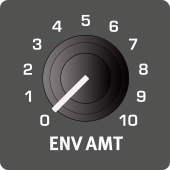
To monitor the current value of any knob parameter, press and hold the SHIFT button while turning that knob.
BUTTONS
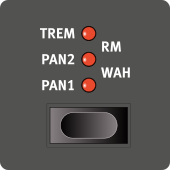
Selector buttons are used for selecting one setting from a group of available options. They have a set of two or three LEDs which indicate the current setting. Press the button several times to cycle through the possible settings.
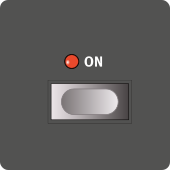
ON/OFF buttons are used for activating a function or a group of functions such as effects and have a LED close to them to indicate the on/off status.
BUTTON HOLD FUNCTIONS
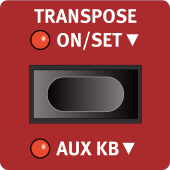
Some buttons, such as that for the Transpose, can be held down in order to access a function or make additional settings, indicated by the text being accompanied by a down arrow (▼).
THE SHIFT BUTTON
Many panel controls on the Nord Electro 7 have a secondary function, which is printed immediately below it. These additional functions are accessed by pressing and holding SHIFT while operating the control.
The Shift button is also used to EXIT a menu or to cancel an ongoing Store operation.
Most Shift functions can also be activated by keeping their associated button pressed for a short period of time.
MASTER LEVEL
The MASTER LEVEL knob sets the overall output level of the instrument, both for the Left/Right outputs and for any connected headphones. Unlike most other panel controls, its value is not stored with individual programs but will always have the level to which it is physically set.

THE SYNTH VIBRATO BUTTON
The SYNTH VIBRATO button is a real-time, momentary control which activates the Synth section Vibrato when pressed down and deactivates it when released, unless a permanent or delayed setting has been made for the Vibrato function in the Synth section. Pressing SHIFT and SYNTH VIBRATO opens the vibrato SETTINGS, where the Rate and Amount of the vibrato can be adjusted.
SOFT BUTTONS
Menu and settings pages – as well as the Organize view – may contain several related options in which case “soft buttons” are used for focusing a setting or performing a task. Soft buttons are placed at the bottom of the display and are controlled with the PROGRAM 1-4 buttons. For example, pressing Program button 1 in the example below will select Program A:22 for a Swap operation.

Programs
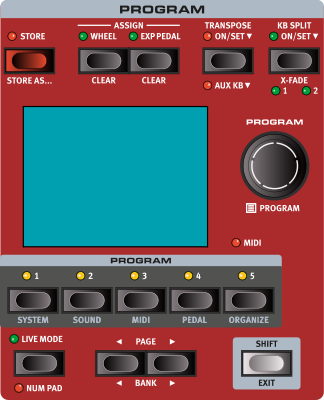
The Program area is located at the center of the panel, with the color display in the middle. One program contains complete settings of every parameter on the panel and is stored in the program memory of the Nord Electro 7, with enough room for 500 programs.
Programs are organized into 20 banks, labeled A-T. All programs can be edited and replaced as desired.
A complete set of the factory programs is available on nordkeyboards.com. This means that the program memory can always be restored to its original state.
SELECT A PROGRAM
Programs are selected by pressing any of the five PROGRAM buttons located below the display, or by turning the PROGRAM dial.
The PAGE ◀︎ / ▶︎ buttons are used to navigate program pages – a page being a group of 5 programs. A Program BANK (Shift+Page) on the Nord Electro 7 contains 25 program locations divided into 5 program pages.
PROGRAM LIST VIEW
Enter List view
Press the PROGRAM dial to enter a list view of all the Programs.
Browse programs
Browse to any program, using the PROGRAM dial. All 20 program banks can be accessed when in List mode.
Sorting lists
Try out the Abc and Cat soft buttons respectively. Note that in Abc mode, all programs are shown in a list sorted by name and in Cat mode as a list sorted by Category. Pressing down on the ABC or Cat soft buttons displays a list of alphanumeric characters or categories, respectively.
Exit list mode
Press SHIFT to EXIT the List view.
EDIT A PROGRAM
Editing a program is as easy as turning a knob or pressing a button, tochange an existing setting. Let’s give it a quick try:
Dial up program A:21 (or any piano based program) for this exercise.
On the Nord Electro 7, piano sounds are grouped according to their Category (for instance Grand or Upright). Press the PIANO LIBRARY dial and select the desired category from the list.
Press the dial again and use the dial to select a specific sound
Press the dial again, or Shift/Exit, to exit the piano selection, and return to the Program view.
Note that changing any parameter on the panel causes an “E” to appear next to the program number in the display. This indicates that the program has been edited but not yet saved. If another program is loaded before a Store operation is performed, any edits are lost and the program will have its original settings the next time it is loaded.
MEMORY PROTECTION
When the Nord Electro 7 is shipped from the factory, its memory is protected to prevent accidental overwriting of original programs. Memory protection can be turned off from the System menu:
Hold SHIFT and press the SYSTEM (Program 1) button below the display.
Memory Protect is the first setting of the System menu. If the display shows a different setting, use the PAGE ◀︎ / ▶︎ buttons to navigate to the Memory Protect setting.
Change this setting to Off by turning the PROGRAM dial.
Press EXIT (Shift button) to exit the System menu.
This setting, like most other System settings, will be permanently stored until it is changed again.
Store a program
Press the STORE button above the display once, to begin the process of storing the current program.
The STORE LED will begin to flash and the display will ask for the location to which the program should be stored.
If you want to store the edited version to the current location, replacing the original, simply press STORE again. If not, use the dial and/or PROGRAM and PAGE/BANK ◀︎ / ▶︎ buttons to select a different location.
When you have found a suitable location for your program, press STORE again to confirm the store operation.
As you scroll through the program locations, each program becomes active on the keyboard. This allows for auditioning any program before it is replaced with the program being stored.
Press Shift/Exit once to cancel an ongoing Store process.
Live Mode
The five Live programs differ from other programs in that all edits made to them are saved automatically, without the need for a manual Store operation.
Press LIVE MODE and use the PROGRAM buttons to navigate the five Live programs.
Make an edit, such as activating one of the effects units, to one of the programs.
Select a different Live program and then return to the one that was edited. Note that the edit was automatically stored.
Press the Live Mode button again to exit Live Mode and return to the Program banks.
If Live Mode is active and you wish to store the settings permanently as a program in one of the Program banks, you can do so using the Store methods described above. Conversely, programs can also be stored into any of the Live Mode memory locations by pressing LIVE MODE and selecting one of the Live program locations at the “Store Program To” step.
LAYER WITH A SYNTH PRESET
Turn on the Synth section.
Press the SOUND LIBRARY dial and press the Analog soft button (Program 3 button).
Select the Analog Pad category (the categories are alphabetically sorted).
Press the SOUND LIBRARY dial again and select a sound from the chosen category. Press the dial again confirm the choice and exit the list.
Use the Synth LEVEL knob to set an appropriate sound level for the pad sound.
The name of the synth preset is shown at the bottom of the display.
When a preset or sample is selected, preset settings for the Synth envelopes (Attack, Decay/Sustain, Release) and Dynamics settings are also loaded. These parameters can be further adjusted manually as desired. Descriptions of these controls are found in the
FOCUS AND ACTIVATE EFFECTS
Continuing on the previous example, press FX FOCUS in the Effects section until the PIANO section is focused for effects editing
Turn ON the Reverb and press LAYER SEND (Shift+On) which allows for different Reverb levels for each section (Organ, Piano and Synth).
Select the HALL Reverb mode and set the Reverb Dry/Wet control to a low amount for the current sound.
Use FX FOCUS to focus the SYNTH section effects, and set the Reverb Dry/Wet level to a higher amount here. Note that the Piano sound is now quite dry, whereas the Synth has much more ambience.
Feel free to continue focusing the Piano and Synth respectively, trying out further effect types and settings for each section as desired.
CREATE A SPLIT
Make sure that both the Piano and a Synth sections are turned on.
Press the SPLIT ON/SET button to turn the Split function on
To adjust the position of the Split point hold down the SPLIT ON/ SET button and select the desired location using the Program dial. The keyboard is now divided into two zones, the split point being indicated with a LED above the keyboard.
Press KB ZONE (Shift+On) for the Piano and set it to LO. Press KB Zone for the Synth section and set it to UP. The Piano sound is now active to the left of the split point and the Synth to the right.
Feel free to use the OCTAVE UP/DOWN controls in the Piano and Synth sections for accessing different ranges of the respective sounds. Also try keeping one of the sections set to both LO and UP using the KB Zone control, letting you play that sound from the entire keyboard, layering it with a split sound.
SET UP A SPLIT CROSS-FADE (X-FADE)
As a final step, let’s adjust the split point so that the split Piano and Synth sounds transition gradually between one another:
Press X-FADE (Shift+Split On/Set) twice to select the 2 option.
Playing across the Split point will now “cross-fade” between the lower and the upper sounds. With the 2 setting, the split LED above the keyboard is lit with a red light and the X-Fade reaches 12 semitones above and below the split point. When width is set to 1 the LED is yellow, giving an X-Fade zone of 6 semitones above and below the split point. When X-Fade is Off, the LED is green.
USING THE ORGAN
Turn On the Organ section and turn Off the Piano and/or Synth sections if active.
Using the ORGAN MODEL selector, choose the Organ Model to use. Let’s go for the B3 in this example.
Turn on the ROTARY SPEAKER and make sure it is set to Organ (ORG) by pressing SHIFT+ON. f ffea ffe
The Organ section has three sets of drawbars available, PRESET I, PRESET II and the LIVE drawbars. The Live drawbars differ from the presets in that the physical positions of the drawbars are always used in this mode. Try out each drawbar set - perhaps setting up a softer sound, using fewer drawbars on Preset II and a sound using a fuller registration on Preset I.
Try out the Rotary Speaker SLOW, STOP and FAST speed controls, placed at the bottom of the Rotary Speaker section. Note that the Rotary Speaker speed can also be changed using a switch pedal attached to the ROTARY CTRL/FOOT SWITCH jack, or by the optional Half Moon Switch accessory which replicates how the rotor speed is normally adjusted on the original instrument.
Additional settings for the Rotary Speaker behaviour and sound are found in the Sound menu. Settings for attached pedals are found in the Pedal menu, further described here